
A domain you register with NG Domain can show a free Welcome page until your website is ready. It shows the domain name and when it was registered, your business details, and pointers for setting up a website and email. It's included at checkout and on by default.
Turn it on or off
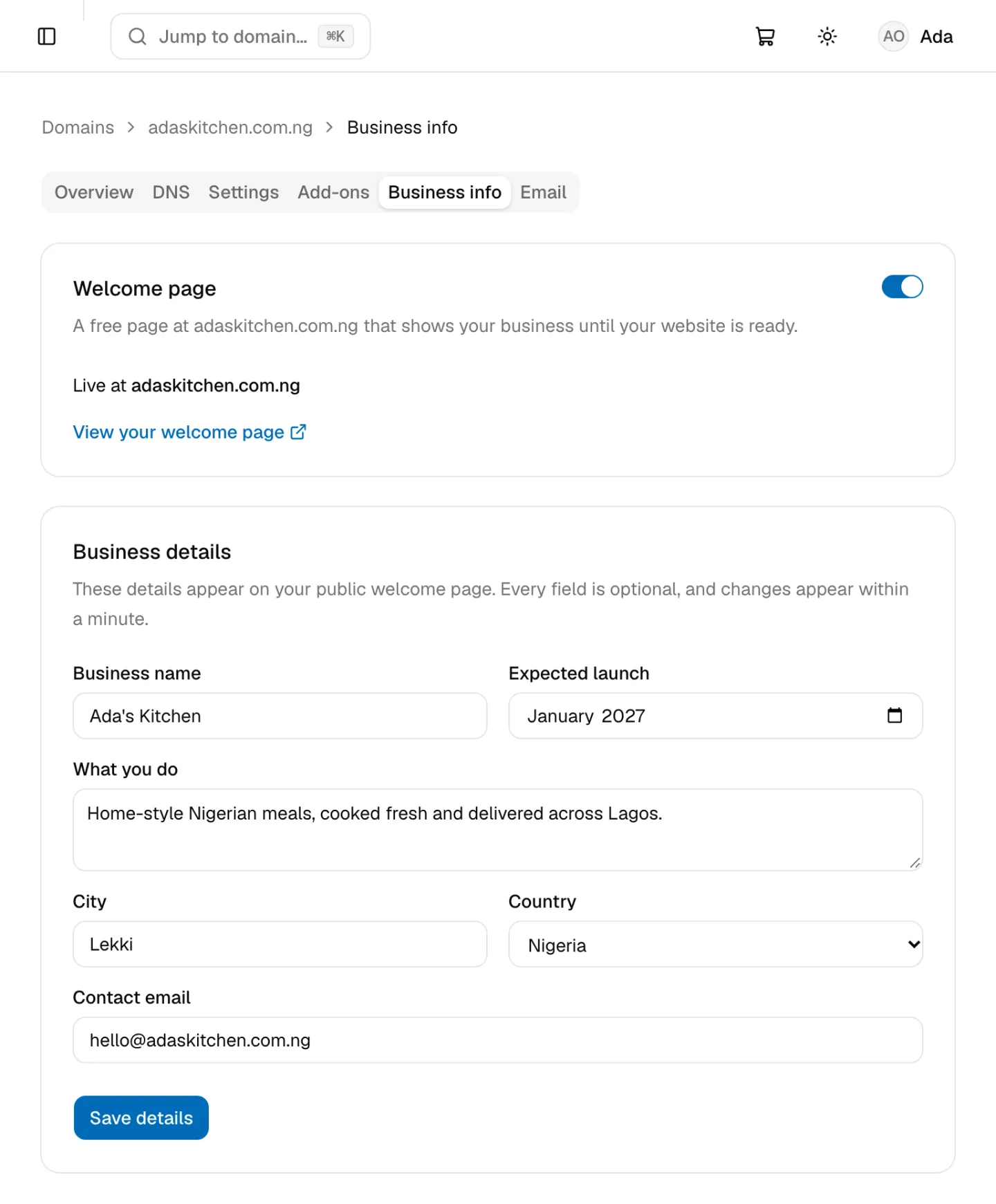
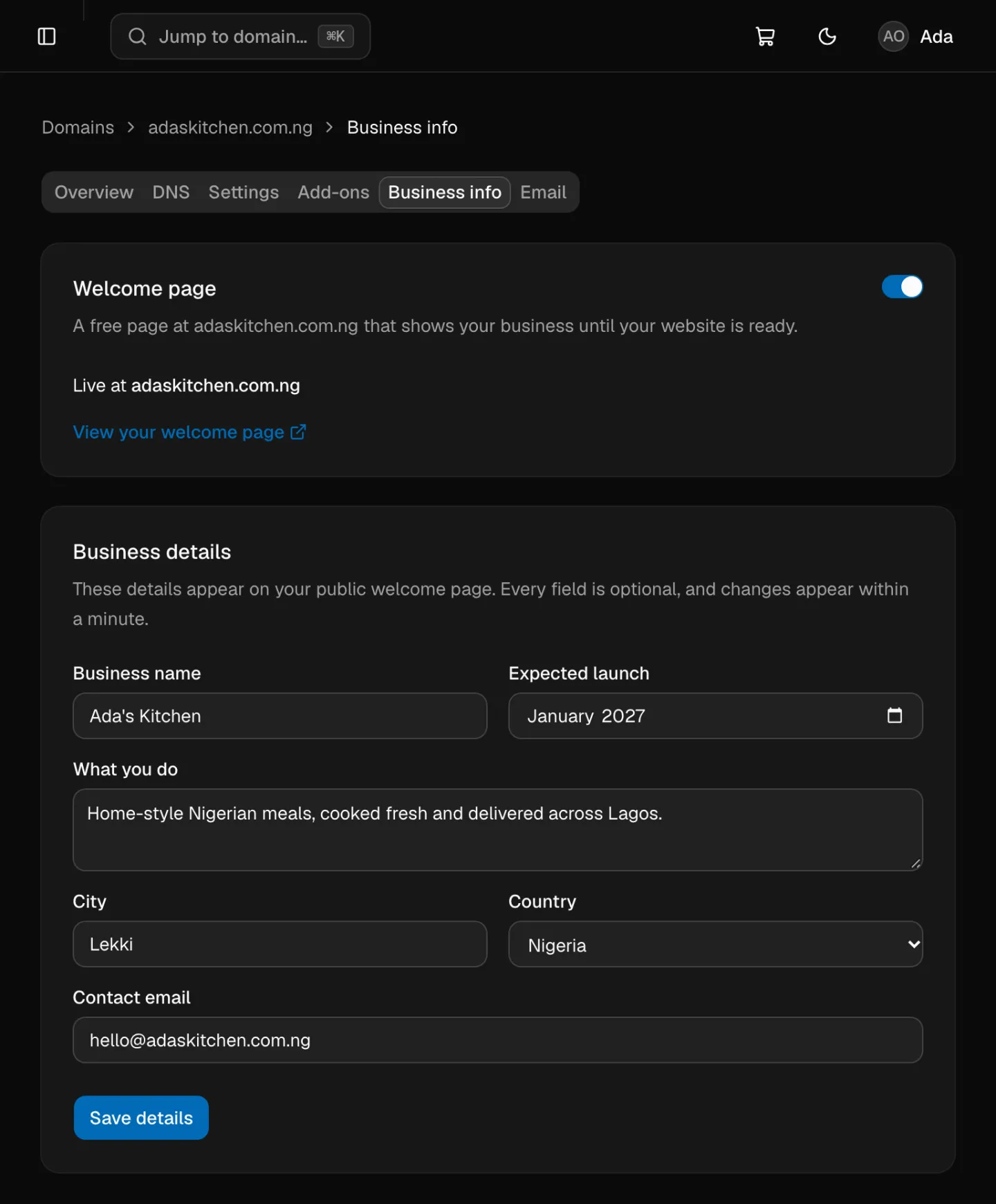
Sign in to your NG Domain dashboard, open My Domains, click the domain and open the Business info tab. The Welcome page card says where it stands:
| Status | What it means |
|---|---|
| Live at your domain | Visitors to your domain see it. Click View your welcome page to check. |
| Setting up… | It appears once the domain's DNS has updated, usually within a few hours. |
| Off | Your domain doesn't show it. |
To turn it off, click the switch at the top of the card. To turn it on, click Turn on welcome page. If the domain uses another provider's nameservers, turning it on moves the domain to NG Domain DNS, so any records you keep at that provider stop working. See Changing Nameservers.
Choose what it shows
The Business details card sets what the page shows. Every field is optional, and a field you leave empty isn't shown.
| Field | What to enter |
|---|---|
| Business name | Up to 80 characters |
| Expected launch | The month your business or website launches |
| What you do | A sentence or two, up to 280 characters |
| City and Country | Where you are |
| Contact email | Where visitors can reach you |
Click Save details. The page shows your changes within a minute. You can also fill these in on the page you see straight after checkout.
When your website is ready
The Welcome page uses the domain's @ and www records, marked Welcome page on the DNS tab. When you add your own website record for @ or www, the dashboard asks you to confirm, then turns the Welcome page off. Your business details are kept, so you can turn it back on later. See Managing DNS Records.